

Last week, a client came to me frustrated. They’d been publishing content for months, investing in backlinks, doing everything their previous agency told them to do. But their traffic was flat.
Twenty minutes into my audit, I found the problem: Google wasn’t even indexing half their pages. They had canonical tags pointing to non-existent URLs, a misconfigured robots.txt file blocking their entire blog, and 300+ redirect chains slowing everything down.
This isn’t rare. I see it constantly. Businesses pouring money into content and links while fundamental technical issues sabotage everything.
Technical SEO is the foundation. Without it, your content strategy is built on sand. In this guide, I’m walking you through my exact technical SEO audit process—the same checklist I use for every client engagement.
Why Technical SEO Audits Matter More Than You Think
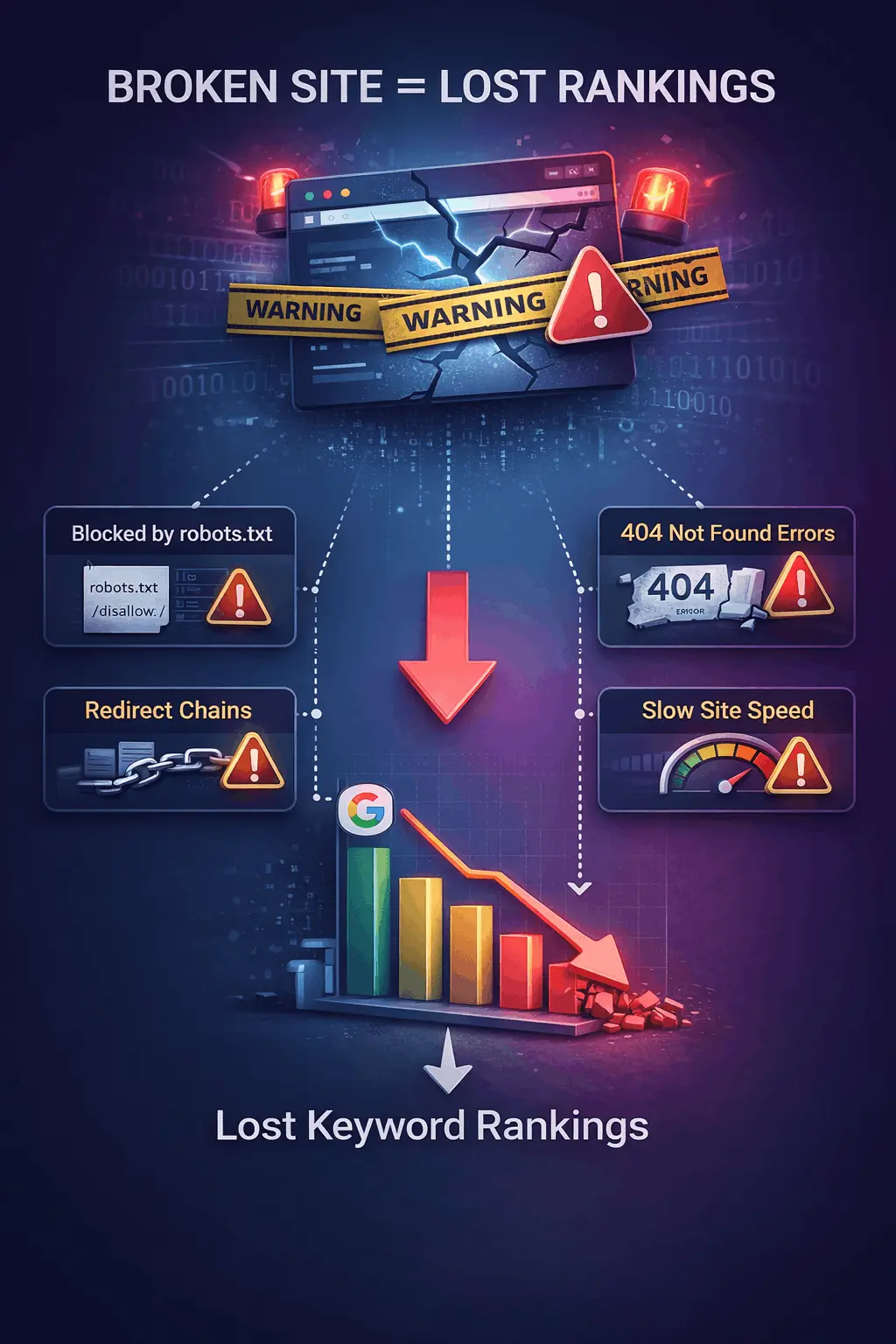
Here’s the reality: you can have the best content in the world, but if search engines can’t crawl, render, or index it properly, you’re invisible.
I’ve seen e-commerce sites with 400+ crawl errors wondering why their product pages don’t rank. Service businesses with 8-second load times confused about high bounce rates. B2B companies with duplicate content issues across dozens of pages.
The common thread? They were all skipping technical SEO fundamentals.
A proper technical audit:
- Reveals what’s blocking Google from seeing your content
- Identifies performance issues killing conversions
- Uncovers duplicate content diluting your rankings
- Finds structural problems limiting growth
- Spots mobile issues losing you traffic
This is why every SEO engagement I take on starts with a comprehensive technical audit. Fix the foundation first, then build on it.
My Technical SEO Audit Process: Step-by-Step
I follow a systematic approach every time. This ensures nothing gets missed and issues are prioritized by impact.
Here’s my exact sequence:
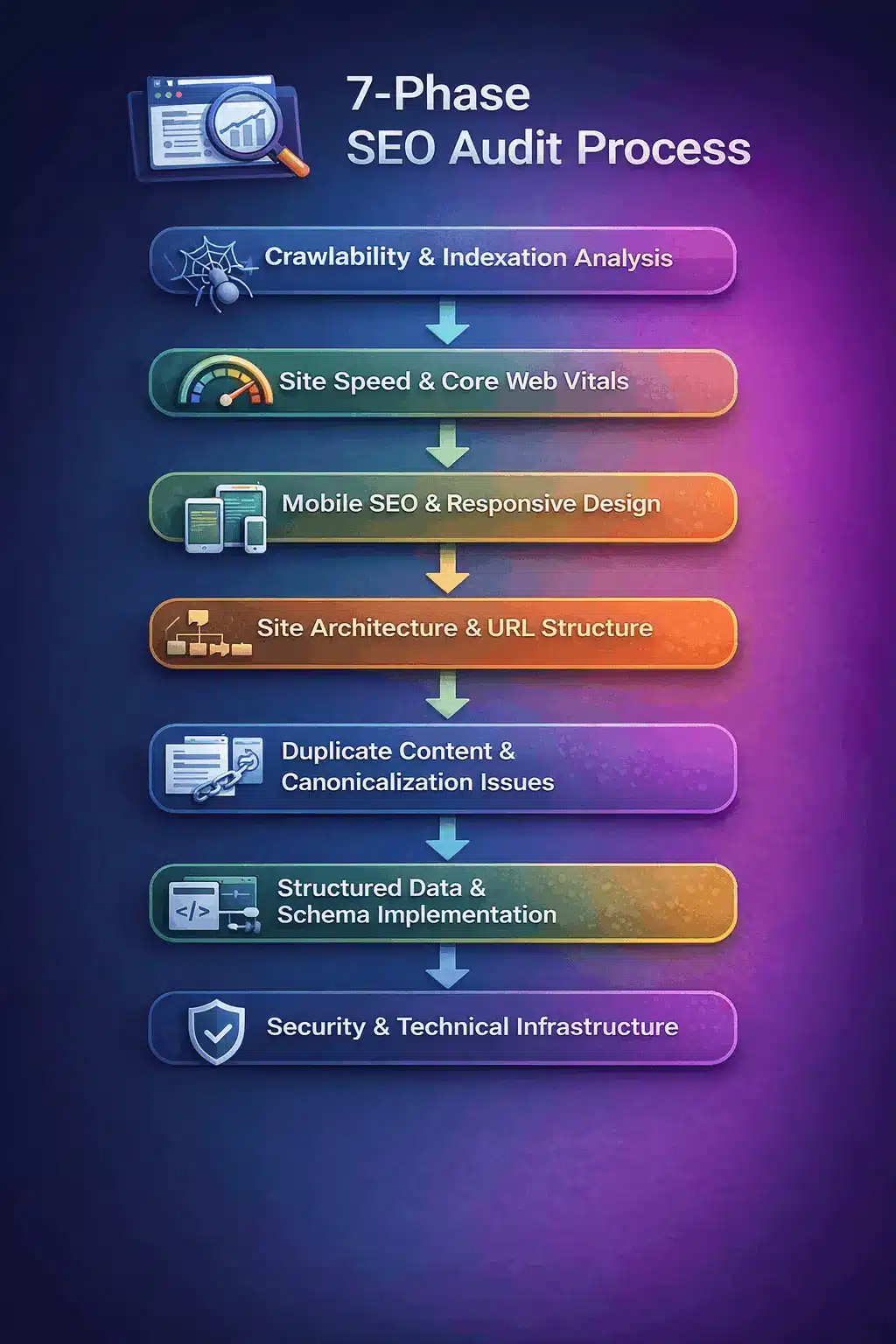
Phase 1: Crawlability & Indexation Analysis
First things first: can Google even access and index your site? If not, everything else is irrelevant.
Tools I Use:
- Screaming Frog SEO Spider – for comprehensive crawl analysis
- Google Search Console – for indexation status and crawl errors
- SEMrush Site Audit – for automated issue detection
- Ahrefs Site Audit – for cross-verification
What I Check:
Robots.txt Configuration
I’ve found sites accidentally blocking entire sections with overly aggressive robots.txt rules. I check if important pages are being disallowed, whether the sitemap is properly referenced, and if there are any outdated directives left over from development.
XML Sitemap Health
Is the sitemap submitted in Search Console? Does it include all important pages? Are there broken URLs listed? Is it updating when new content publishes? I once found a sitemap that hadn’t been updated in two years—hundreds of new pages weren’t being discovered.
Crawl Errors & Broken Pages
Using Screaming Frog and Search Console, I identify all 404 errors, server errors (5xx), and timeout issues. That e-commerce client I mentioned? They had 400+ crawl errors eating up their crawl budget. Every broken page Google tries to access is bandwidth wasted.
Indexation Status
I check Search Console’s coverage report to see what Google has indexed versus what you want indexed. Often I find pages with noindex tags that should be indexed, or parameter pages creating thousands of unnecessary indexed URLs.
Canonical Tag Implementation
Canonical tags are supposed to prevent duplicate content issues. Instead, they’re often the cause. I look for canonicals pointing to 404s, self-referencing issues, canonical chains, and pages with conflicting signals (canonical tag says one thing, robots meta says another).
JavaScript Rendering
Modern sites rely heavily on JavaScript. But can Google render and see your JS-generated content? I use the URL Inspection tool in Search Console and compare rendered vs. raw HTML. React and Vue sites especially need this check.
Phase 2: Site Speed & Core Web Vitals
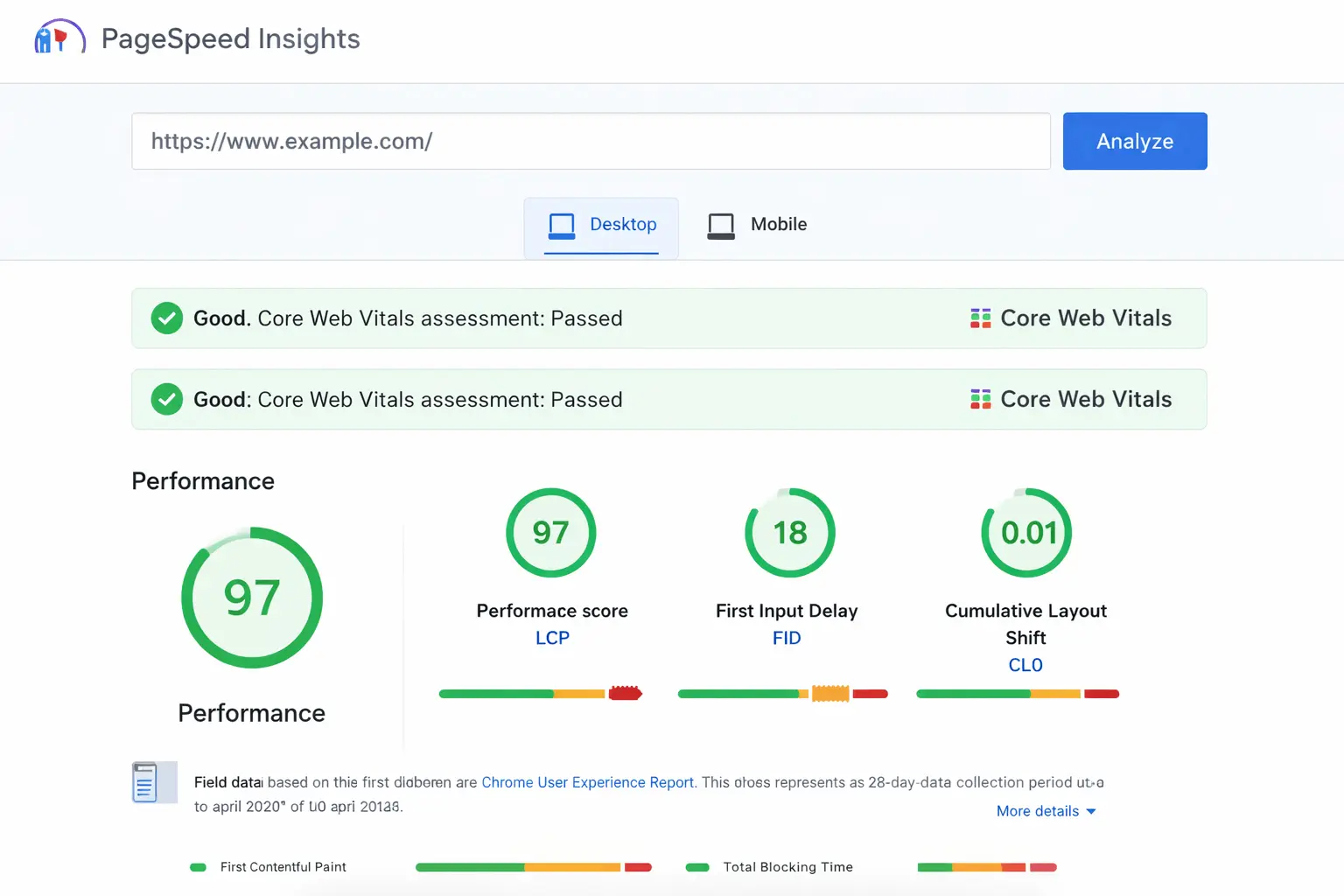
Speed isn’t just a ranking factor—it’s a conversion factor. That service business with the 8-second load time? Their bounce rate was 73%. After speed optimization, it dropped to 32%.
Tools I Use:
- PageSpeed Insights – for Core Web Vitals assessment
- Google Search Console (Core Web Vitals report) – for field data
- Screaming Frog – for page weight analysis
- Microsoft Clarity – for real user behavior and performance impact
What I Check:
Core Web Vitals Metrics
LCP (Largest Contentful Paint): Should be under 2.5 seconds. Anything over 4 seconds is failing. FID (First Input Delay): Should be under 100ms. CLS (Cumulative Layout Shift): Should be under 0.1. These aren’t just Google metrics—they measure actual user experience.
Server Response Time (TTFB)
How fast does your server respond? If TTFB is over 600ms, you’ve got hosting or server configuration issues. I’ve seen shared hosting kill site performance—moving to better infrastructure often delivers instant improvements.
Image Optimization
Images are usually the biggest performance killer. I check for uncompressed images (500KB+ hero images are common), missing lazy loading, lack of next-gen formats (WebP, AVIF), and images served at larger dimensions than displayed.
Resource Loading
Are scripts blocking render? Is CSS minified? Are fonts loading efficiently? I look at the waterfall chart to see what’s slowing initial page load. Often it’s third-party scripts—analytics, chat widgets, ads—that aren’t properly deferred.
Caching Configuration
Is browser caching enabled? Are static resources cached properly? Is there a CDN in place? These basics make huge differences but are often overlooked.
Phase 3: Mobile SEO & Responsive Design
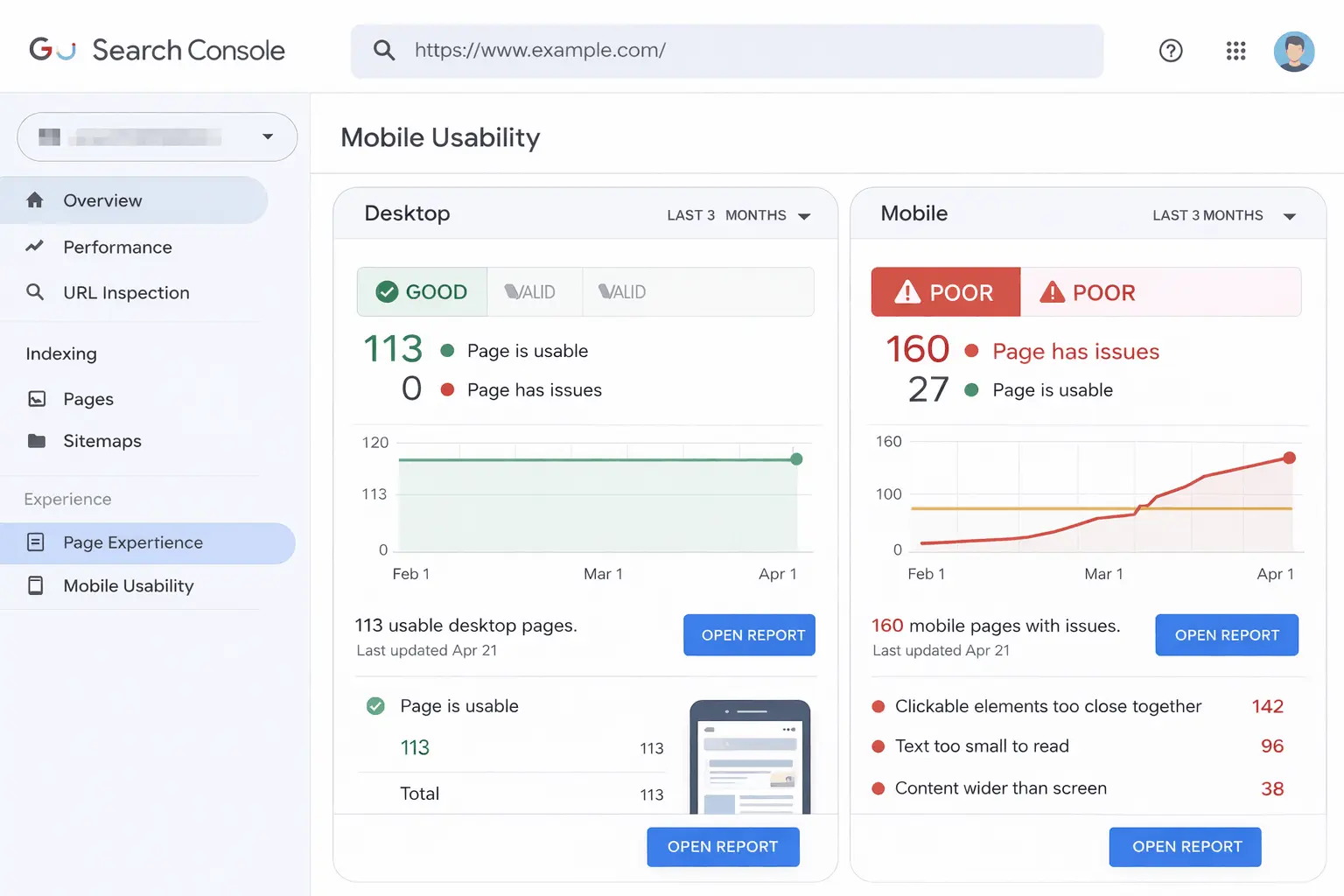
Google uses mobile-first indexing. If your mobile experience is broken, your rankings suffer regardless of how good your desktop site is.
Tools I Use:
- Google Search Console (Mobile Usability report)
- PageSpeed Insights (mobile test)
- Screaming Frog (mobile rendering)
- Microsoft Clarity (mobile session recordings)
What I Check:
Mobile-Friendly Test Results
Does content fit the screen? Are tap targets large enough? Is text readable without zooming? Search Console’s mobile usability report flags these issues automatically.
Responsive Design Implementation
I test on different viewport sizes. Does the layout adapt properly? Are there horizontal scroll issues? Do images scale correctly? Using Clarity’s session recordings, I watch real mobile users interact with the site to spot friction points.
Mobile Page Speed
Mobile networks are slower. A site that loads in 2 seconds on desktop might take 6 seconds on 3G. I specifically test mobile performance and look for mobile-specific issues like unoptimized images or heavy JavaScript.
Touch Element Spacing
Are buttons and links spaced far enough apart for fingers? I’ve seen navigation menus where tap targets overlap, making them impossible to use on mobile.
Phase 4: Site Architecture & URL Structure
How your site is organized affects both crawlability and user experience. Poor architecture makes Google work harder and users get lost.
Tools I Use:
- Screaming Frog (site structure visualization)
- Ahrefs Site Audit (internal linking analysis)
- Google Search Console (internal links report)
What I Check:
URL Structure & Consistency
Are URLs clean and descriptive? Do they follow a logical hierarchy? I look for messy URLs with parameters, session IDs, or random character strings. Good: /services/technical-seo. Bad: /page.php?id=12345&ref=abc.
Internal Linking Strategy
How well are pages connected? Important pages should be linked from the homepage and other high-authority pages. I look for orphaned pages (zero internal links pointing to them), broken internal links, and poor anchor text distribution.
Site Depth
How many clicks does it take to reach important pages from the homepage? Ideally, no page should be more than 3-4 clicks deep. If important content is buried, it won’t get crawled frequently or rank well.
Redirect Chains & Loops
Every redirect adds latency. Redirect chains (A → B → C → D) waste crawl budget and slow pages down. I map all redirects and consolidate chains into direct redirects.
Phase 5: Duplicate Content & Canonicalization Issues
Duplicate content dilutes your ranking power. Instead of one strong page, you have three weak variations competing against each other.
Tools I Use:
- Screaming Frog (duplicate content detection)
- SEMrush Site Audit (duplicate issues)
- Ahrefs (duplicate title/meta analysis)
What I Check:
Duplicate Page Content
Are multiple URLs serving identical or near-identical content? Common causes: www vs. non-www, HTTP vs. HTTPS, trailing slashes, parameter variations, printer-friendly versions. All need proper canonical tags or redirects.
Duplicate Meta Data
Dozens of pages with identical titles and meta descriptions signal thin content. Each page needs unique, descriptive metadata that actually reflects its content.
Canonical Tag Mistakes
This deserves its own section because I see it butchered constantly. Canonical tags pointing to 404s, canonicals on paginated pages all pointing to page 1, canonical chains, conflicting canonicals in the HTTP header vs. HTML head. Each mistake confuses Google about which version to index.
Parameter Handling
E-commerce sites especially struggle with this. Filtering, sorting, tracking parameters can create thousands of duplicate URLs. I configure Search Console’s URL Parameters tool and implement proper canonicalization.
Phase 6: Structured Data & Schema Implementation
Schema markup helps search engines understand your content better and can earn rich results (star ratings, FAQ snippets, product info in search results).
Tools I Use:
- Google Rich Results Test
- Schema Markup Validator
- Screaming Frog (schema extraction)
- Google Search Console (Rich Results report)
What I Check:
Schema Implementation
Is schema markup present? Is it the right type for the content (Article, Product, LocalBusiness, FAQ, HowTo)? Is it implemented correctly (JSON-LD preferred over microdata)? Are required properties included?
Structured Data Errors
Even sites with schema often have errors: missing required fields, incorrect data types, invalid values. I run every page through the validator and fix errors preventing rich results eligibility.
Rich Results Opportunities
Which rich results could this site qualify for? Reviews, recipes, events, FAQs, how-tos? I identify opportunities and implement appropriate schema to maximize visibility in search results.
Phase 7: Security & Technical Infrastructure
Security isn’t optional. HTTPS is a ranking signal, and sites without it show scary warnings that kill conversions.
What I Check:
HTTPS Implementation
Is the entire site on HTTPS? Are there mixed content warnings (HTTP resources loaded on HTTPS pages)? Is the SSL certificate valid and not expiring soon? Are HTTP versions properly redirecting to HTTPS?
Server Configuration
Is the server returning proper status codes? Are error pages configured correctly? Is compression enabled (gzip/brotli)? These technical details affect both performance and crawlability.
Hosting Quality
Server uptime and reliability matter. If your host has frequent downtime, Google sees it. If server response is consistently slow, it impacts rankings. I check uptime history and recommend upgrades when hosting is clearly the bottleneck.
The Most Common Technical SEO Issues I Find
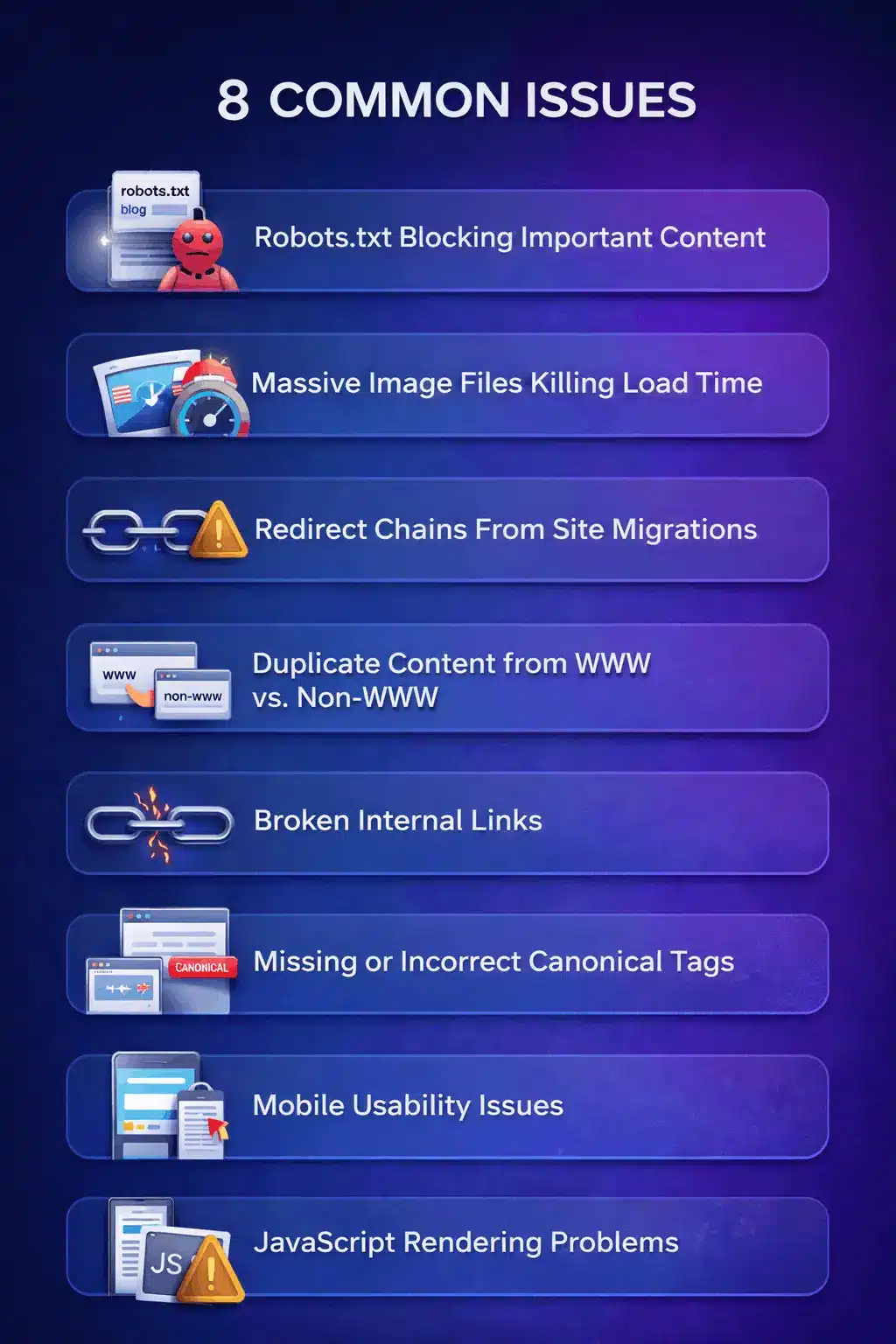
After auditing hundreds of sites, certain issues appear over and over. Here are the ones that cause the most damage:
1. Robots.txt Blocking Important Content
A client couldn’t figure out why their blog wasn’t getting traffic. Turns out, their developer had added ‘Disallow: /blog/’ to robots.txt during a site migration and never removed it. Six months of content—completely invisible to Google.
2. Massive Image Files Killing Load Time
That 8-second load time I mentioned? The homepage had twelve 2MB+ images. No compression, no lazy loading, all loading on page load. After optimization, load time dropped to 1.8 seconds. Traffic increased 34% in the next month.
3. Redirect Chains From Site Migrations
Old URL → redirect 1 → redirect 2 → redirect 3 → final URL. Every redirect adds 100-200ms. I found one site with redirect chains 5 deep. Consolidating them into direct redirects improved crawl efficiency immediately.
4. Duplicate Content from WWW vs. Non-WWW
Both versions resolving without redirecting means duplicate content. Google sees it as two separate sites. Pick one, redirect the other, update canonicals. Simple fix, huge impact.
5. Broken Internal Links
One e-commerce client had 400+ broken internal links from old product URLs that changed but weren’t updated site-wide. Every 404 is a dead end for users and wasted crawl budget for Google.
6. Missing or Incorrect Canonical Tags
Canonicals pointing to 404 pages, canonical loops, pages with no canonical at all. When Google doesn’t know which version is the ‘real’ one, it makes its own choice—and it’s often wrong.
7. Mobile Usability Issues
Text too small to read, buttons too close together, content wider than the screen. Mobile accounts for 60%+ of traffic for most sites. If mobile experience is broken, you’re losing more than half your potential audience.
8. JavaScript Rendering Problems
Sites built with React or Vue sometimes serve empty HTML to crawlers. Google has to render JavaScript to see content, which delays indexing and sometimes fails entirely. Always check what Googlebot actually sees.
How to Prioritize Technical SEO Fixes
You’ll find dozens of issues in any audit. You can’t fix everything at once. Here’s how I prioritize:
Critical (Fix Immediately)
- Indexation blocks (robots.txt, noindex tags on important pages)
- Security issues (no HTTPS, mixed content)
- Severe speed problems (8+ second load times)
- Broken core functionality
These prevent Google from even seeing your site properly. Nothing else matters until they’re fixed.
High Priority (Fix Within Weeks)
- Duplicate content issues
- Major mobile usability problems
- Widespread broken links (50+)
- Core Web Vitals failures
- Canonical tag errors
These actively hurt rankings and user experience. They should be addressed quickly.
Medium Priority (Fix Within Months)
- Site architecture improvements
- Internal linking optimization
- Schema markup implementation
- Image optimization
- Minor redirect cleanup
These improve performance but aren’t blocking major issues.
Low Priority (Ongoing Optimization)
- URL structure refinements
- Advanced caching strategies
- Minor meta data improvements
- Incremental speed optimizations
Nice to have, but focus on critical and high-priority items first.
How Technical SEO Fits Into Your Overall Strategy
Technical SEO is the foundation, but it’s not the whole house.
Think of it this way:
Technical SEO = Making sure Google can access, crawl, and understand your site
On-page SEO = Optimizing individual pages to rank for target keywords
Content marketing = Creating valuable content that earns rankings and links
Link building = Earning backlinks that signal authority to Google
Without technical SEO, the rest doesn’t work. But technical SEO alone won’t get you ranked either. You need all components working together.
This is why my SEO strategy always starts with technical audit but doesn’t stop there. Fix the foundation, then build on it.
When Should You Run a Technical SEO Audit?
Don’t wait for a crisis. Here’s when technical audits are essential:
Before Launching a New Site
Catch issues before they go live. It’s 10x easier to fix things pre-launch than after thousands of pages are indexed incorrectly.
After a Site Migration or Redesign
Migrations break things. Always. Redirects get missed, canonicals point to old URLs, page structures change. Audit immediately after migration to minimize ranking losses.
When Organic Traffic Drops Suddenly
If traffic plummets and you haven’t changed anything, technical issues are likely. Maybe Google stopped indexing pages. Maybe site speed degraded. An audit reveals what broke.
Every 6-12 Months as Maintenance
Sites accumulate issues over time. Content gets added, plugins get updated, hosting changes. Regular audits catch problems before they compound.
Before Investing in Content or Links
Don’t pour money into content creation or link building if your technical foundation is broken. Fix crawlability and indexation first, then scale content efforts.
Should You DIY or Hire a Professional?
Honest answer: depends on your technical skills and complexity of your site.
You Can Probably DIY If:
- You have a small site (under 100 pages)
- You’re comfortable using tools like Screaming Frog and Search Console
- Your site is built on a standard platform (WordPress, Shopify)
- You have time to learn and implement fixes
Use this checklist, run the tools, and tackle issues systematically.
You Should Hire a Professional If:
- Your site is large or complex (1000+ pages, custom builds)
- You’ve experienced sudden ranking drops you can’t explain
- You’re planning a major migration or redesign
- Technical SEO feels overwhelming and you’d rather focus on running your business
- You want confidence that nothing was missed
A professional audit pays for itself. The traffic and conversion improvements from fixing critical issues typically exceed the audit cost within months.
Final Thoughts: Technical SEO Is Never “Done”
Here’s the truth: technical SEO is ongoing maintenance, not a one-time project.
Your site changes. Google’s requirements evolve. New issues emerge. What worked six months ago might not work today.
But that’s not a bad thing. It means there’s always room for improvement. Every issue you fix is an opportunity to perform better.
Start with this checklist. Run the audits. Fix the critical items. Then move to high-priority issues. Don’t try to fix everything at once—prioritize based on impact.
And remember: technical SEO is the foundation for everything else. Get this right, and your content, links, and on-page optimization efforts will actually deliver results.
Need help with your technical SEO audit? I offer comprehensive audits that identify every issue holding your site back—with prioritized recommendations and implementation guidance.
Get in touch for a free initial consultation, and let’s see what’s holding your site back.